.png)


3 Easy Ways to View and Transfer Photos from your Paper Shoot Camera


From taking the shot to sharing it—here’s how to view your Paper Shoot photos with ease.
After a day of taking your Paper Shoot camera everywhere, the most exciting part is finally seeing what you have captured. That anticipation is part of its charm—reminiscent of shooting on film, with a little suspense and plenty of surprises.
So, how do you view and transfer your Paper Shoot photos to a phone or computer? Here are three straightforward options.
Method 1:: Use an SD Card Reader - For Quick Access on your phone
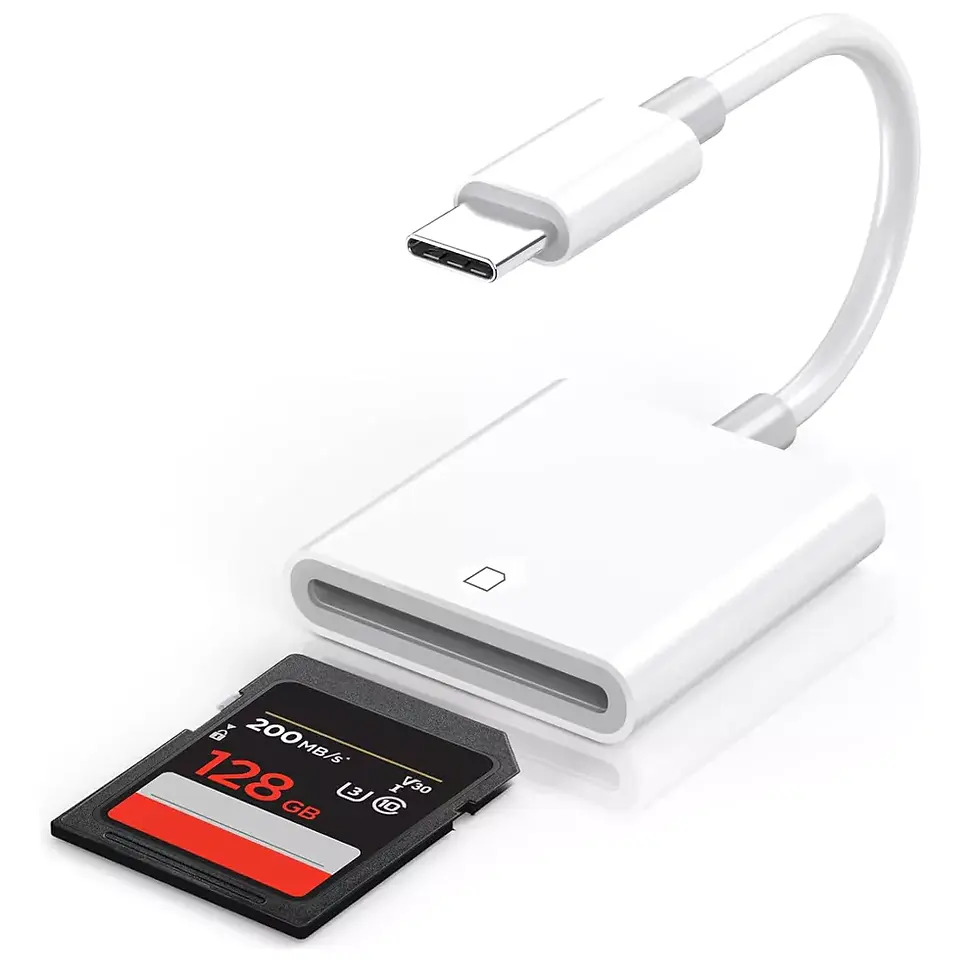
Best for: Anyone who wants to view their photos right away.
If you like checking your shots as soon as you have taken them, a card reader is a convenient option.
How to Transfer Your Photos
Gently remove the microSD card from your Paper Shoot camera by pressing it lightly to release it.
Insert the memory card into a compatible SD card reader, using an adapter if needed.
Connect the reader to your phone using the appropriate Lightning or USB-C connector.
Open your phone’s photo library or file manager.
Select the photos you want to transfer.
Import or copy them to your phone.
Tips
Once you have confirmed that your photos have been successfully saved and backed up, you can delete them from the memory card to free up space.
Browse through your photos first, then choose the ones you want to keep.
Method 2: Transfer Photos to a Computer — For Viewing and Organizing
Best for: Anyone who prefers a larger screen or wants to organize and store photos for the long term.
If you are not in a rush, transferring your photos to a computer is a practical way to manage your collection.
How to Transfer Your Photos
Remove the SD card from your camera.
Insert it into your computer’s card slot or a compatible card reader.
Your computer should recognize the card as a storage device.
Open the folder containing your photos.
Select and copy the photos to your computer.
When the transfer is complete, safely eject the card before removing it.
Reinsert the card into your camera so it is ready for your next outing.
If the Memory Card Indicator Keeps Flashing
A continuously flashing memory card indicator on the back of the camera may mean:
The memory card is full.
There is a problem with the card.
Back up your photos promptly, then free up space or check the card for errors.
Method 3: Connect with a USB-C Cable — Without Removing the Card

Best for: Anyone who prefers to leave the memory card in the camera or wants to charge the camera while transferring photos.
The USB-C cable supplied with the camera supports both charging and data transfer.
How to Transfer Your Photos
Use the USB-C cable supplied with your Paper Shoot camera.
Connect the USB-C end to the camera.
Connect the other end to your computer.
Your computer should recognize Paper Shoot as an external storage device.
Open the photo folder to view your images.
Select and copy the photos you want to save.
Benefits
Transfer photos while charging the camera.*
Keep the memory card inside the camera.
Conveniently transfer multiple photos at once.
Only charge the camera with suitable rechargeable batteries installed. Do not attempt to charge non-rechargeable batteries, as doing so can cause damage.
Tips for Organizing Your Paper Shoot Photos
1. Create Folders by Date or Occasion
Organize your photos into folders named after a date, event, or trip so they are easier to find.
For example:
2026-06-20_CafeWithFriends
2026-06-22_DaLatTrip
2. Back Up Your Photos Regularly
Keep copies of your important photographs in locations such as:
Cloud storage.
An external hard drive.
Your personal laptop.
Regularly freeing up space on your memory card also helps keep it ready for future shoots.

Common Issues and Troubleshooting
Your Memory Card Is Not Being Recognized
Check that:
The card is inserted correctly.
The card has no visible physical damage.
The card reader is compatible with your card and device.
If necessary, try formatting the card on your computer.
Important: Formatting erases all data on the card. Back up your photos before proceeding.
Your Photos Look Blurry or Dark
Possible causes include:
Camera movement while taking the photo.
Dust or fingerprints on the lens.
Insufficient light.
Paper Shoot does not have a built-in flash. In low-light settings, try:
Moving to a better-lit location.
Using a compatible ring light accessory for additional lighting.
Whichever transfer method you choose, the best one is the one that fits naturally into your routine.
Part of the joy of Paper Shoot is waiting to discover what you have captured. That small surprise can make everyday moments feel even more memorable.
Happy shooting with Paper Shoot! 📸
------
Paper Shoot Vietnam
Website: www.papershoot.vn
Instagram: https://www.instagram.com/papershoot.vn/
Hotline: 0869280716


Comments